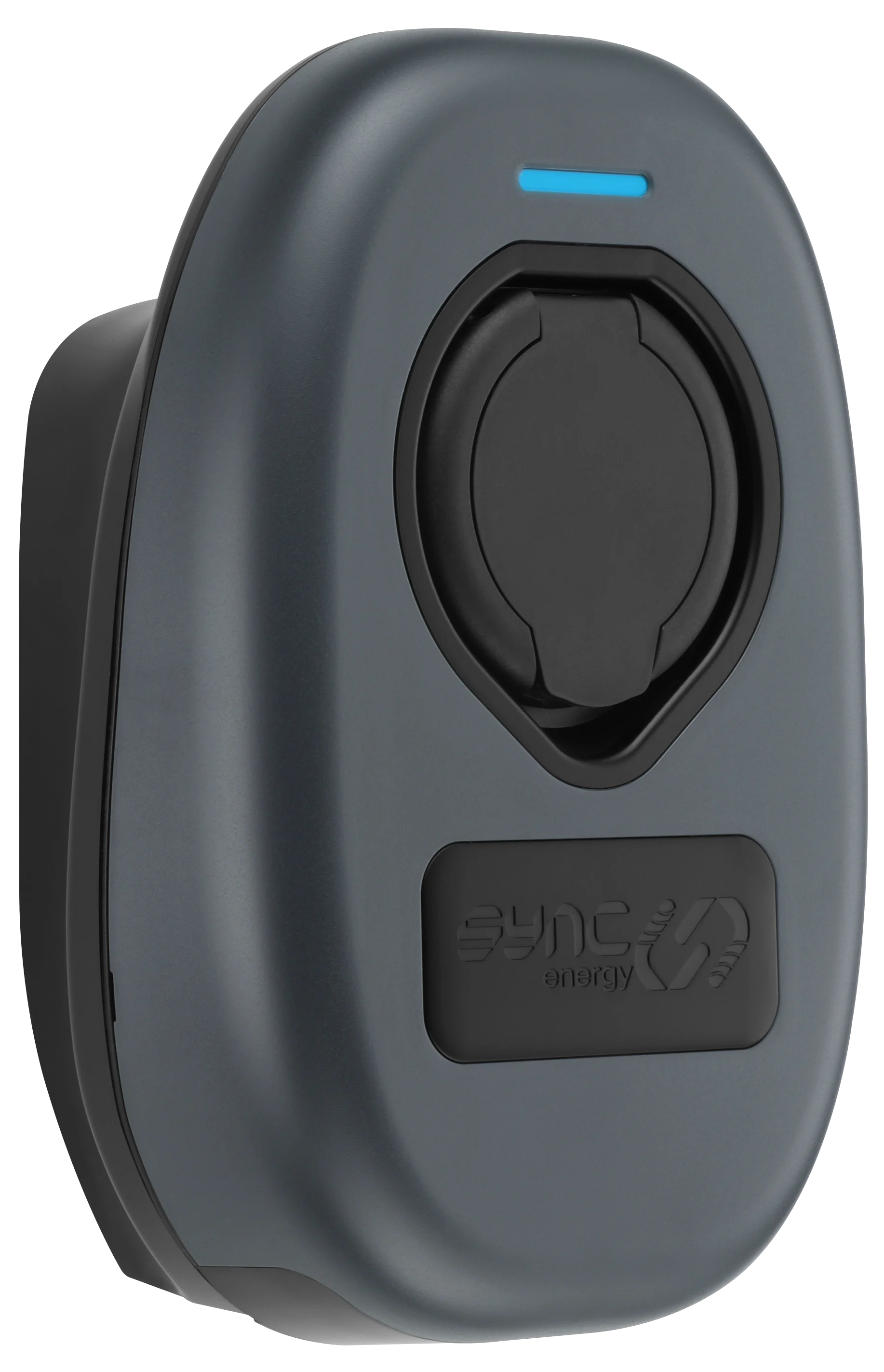
A 7.4kW single-phase smart charger that works as socketed with WiFi, LAN, and Bluetooth connectivity plus RGB LED status and buzzer feedback. Integrated open-PEN protection and Type A RCD (30mA AC + 6mA DC) mean no earth rod is typically needed, keeping installation simple and cost-effective. EVWC2S7GG - 4G enabled unit.







Download the Sync Energy App: https://sync.energy/sync-energy-app
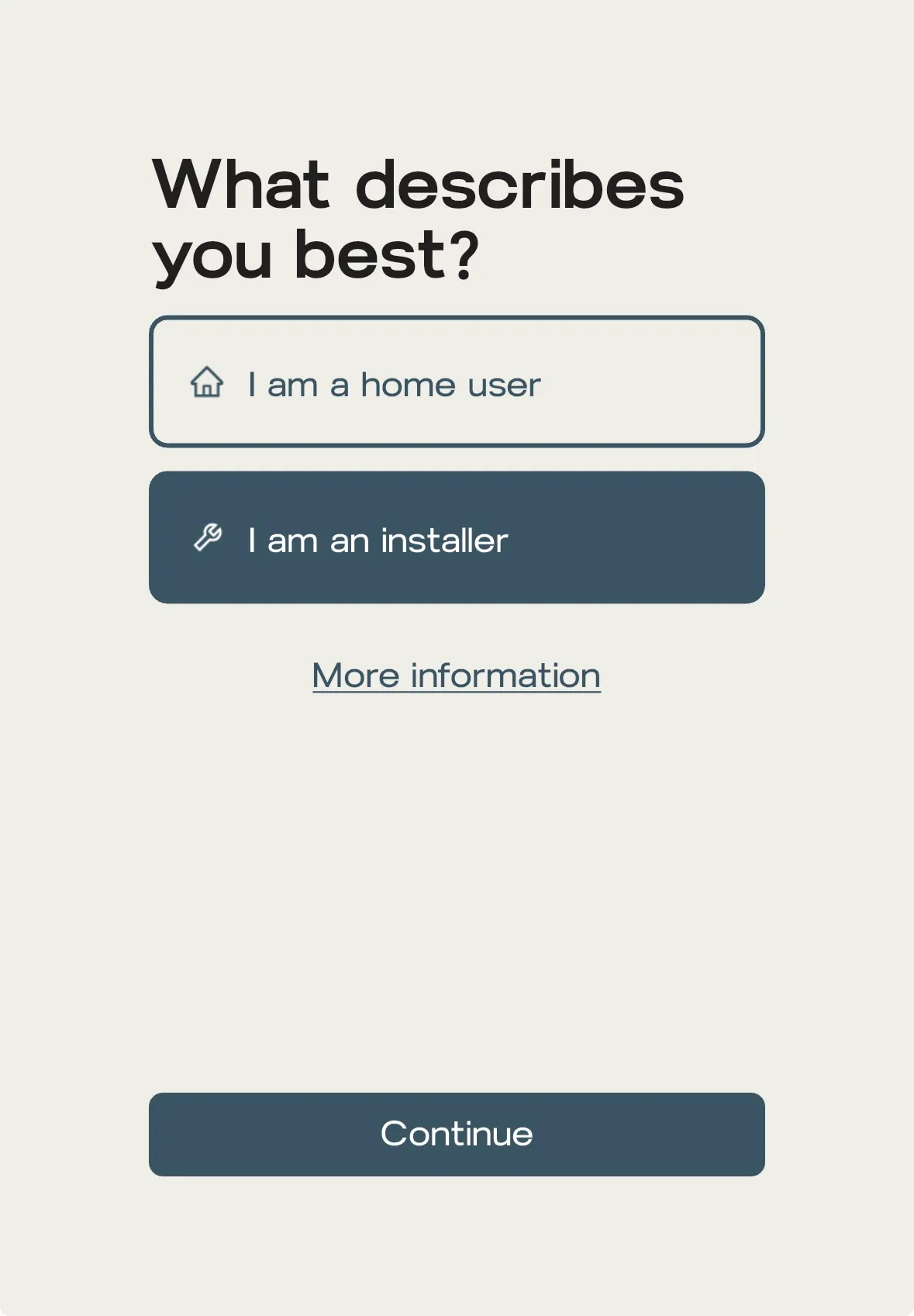
If you are an installer and this is the first time you are using the app, ensure you select "I am an installer" option.
Power on the Sync EV 2 then connect to it via the Sync Energy app. Remember to enable Bluetooth on your phone.
If prompted for a login password for the charger, there should be a default log in password on the installation manual.
Once you have successfully connected to the EV charger via Bluetooth on your mobile phone, select "Advanced" set up as this will allow you to change the OCPP URL.
Follow on-screen prompts to complete the set up of the EV charger.
Note: if a CT clamp is installed and a negative current value is shown on "Clamp value", then the polarity of the wiring in the EV charger is reversed or the clamp direction is in a reverse direction.
Once you have completed set up of the charger, you'll need to ensure a stable internet connection is provided for the charger. If you have bought a 4G SIM card from voltshare, please contact us for the APN setting.
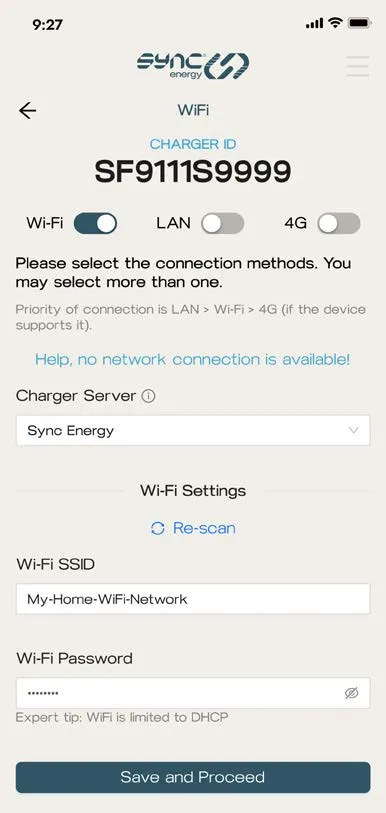
If you are using WiFi, ensure the network is on 2.4GHz band.
Then under "Charger Server", select "Other (Manual Entry)"
Charger ID (Sync Energy): note this down
OCPP URL: please request this via your voltshare representative
Auth keys: voltshare do not use Auth keys
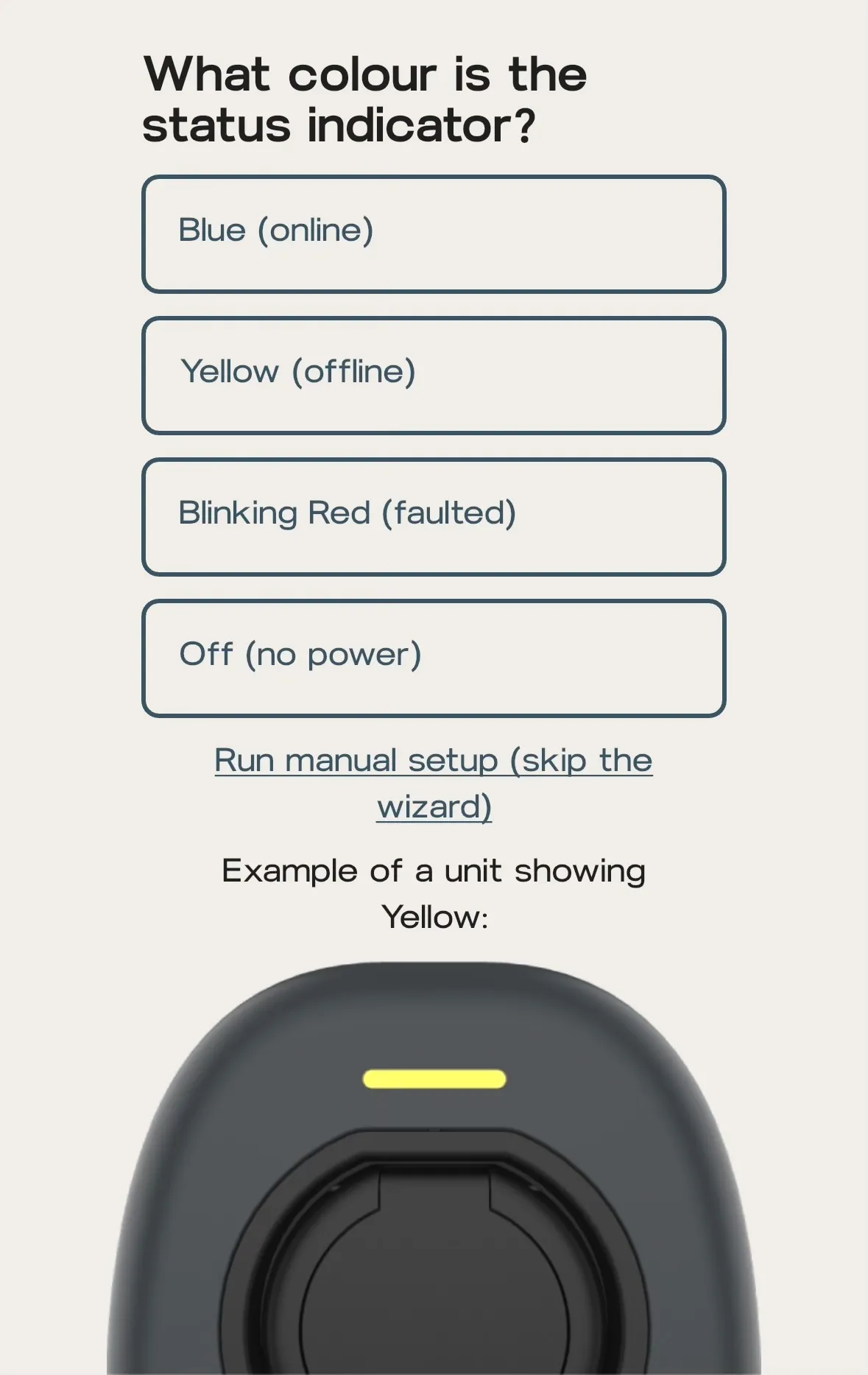
If the LED indicator is Blue - this means it has connected successfully to the internet but you will still need to follow our commissioning steps below to ensure it is syncing with our backoffice.
If the LED indicator is Yellow - this means internet is too weak for the EV charger. A stronger network needs to be provided via a WiFi extender, Ethernet, or 4G if applicable. If you are using 4G, then ensure the APN setting is correct or mobile network at the position of the charger is too weak.
If the LED indicator is Blinking Red - this could mean an internal RCD trip or the supply voltage is over or under the regulated limits.
Please ensure these settings are disabled for our backoffice to work seamlessly with the EV charger.
Smart scheduling: disabled
Charge Mode: APP
Charge Now: enabled
This will show up as a blinking red light on the LED indicator and will prevent the EV charger from functioning.
Place the QR code sticker on a flat surface of the EV charger; we cannot guarantee a seamless driver experience if the QR code sticker is placed elsewhere e.g. do not place it on the wall or on the post.
Affix the aluminium di-bond sign on the wall or post; this provides the driver with clear instructions on how to charge; as above, we cannot guarantee a seamless driver experience if this is not done.
Call 0808 303 0629 and provide us with the following details to confirm the EV charger is live on our platform.
voltshare Charger ID: found on the QR code sticker
Sync Energy Charger ID: found on the Sync Energy App
Take photos of the install and charger ID, parking space, and fuseboard from where the EV charger is wired. These help us provide owners and drivers more personalised experience.
The owner must now register the voltshare Charger ID on their app.
You will need access to the EV charger via the Sync Energy app. If this charger has not yet been configured, then follow the "new install" tab.
Then under "Charger Server", select "Other (Manual Entry)"
Charger ID (Sync Energy): note this down
OCPP URL: please request this via your voltshare representative
Auth keys: voltshare do not use Auth keys
If the LED indicator is Blue - this means it has connected successfully to the internet but you will still need to follow our commissioning steps below to ensure it is syncing with our backoffice.
If the LED indicator is Yellow - this means internet is too weak for the EV charger. A stronger network needs to be provided via a WiFi extender, Ethernet, or 4G if applicable. If you are using 4G, then ensure the APN setting is correct or mobile network at the position of the charger is too weak.
4G Data: we have come across a few scenarios where the 4G contract with the previous backoffice provider has been discontinued. If you need a 4G SIM card, please contact us directly.
If the LED indicator is Blinking Red - this could mean an internal RCD trip or the supply voltage is over or under the regulated limits.
Please ensure these settings are disabled for our backoffice to work seamlessly with the EV charger.
Smart scheduling: disabled
Charge Mode: APP
Charge Now: enabled
Place the QR code sticker on a flat surface of the EV charger; we cannot guarantee a seamless driver experience if the QR code sticker is placed elsewhere e.g. do not place it on the wall or on the post.
Affix the aluminium di-bond sign on the wall or post; this provides the driver with clear instructions on how to charge; as above, we cannot guarantee a seamless driver experience if this is not done.
Call 0808 303 0629 and provide us with the following details to confirm the EV charger is live on our platform.
voltshare Charger ID: found on the QR code sticker
Sync Energy Charger ID: found on the Sync Energy App
Take photos of the install and charger ID, parking space, and fuseboard from where the EV charger is wired. These help us provide owners and drivers more personalised experience.
The owner must now register the voltshare Charger ID on their app.
It's never just "an EV charger". Find out what accessories are available directly from voltshare, to create your complete and reliable charging solution.
Most commercial EV chargers are situated far away from wireless networks, routers go offline and passwords change. Prevent revenue loss and connection drops with a dedicated IoT SIM card for your EV charger.


If your charger is accessible to members of the public, you may need to support contactless payment. Fear not as these hardware and associated accessories can be purchased directly and are fully integrated with voltshare.